Getting Started
Decide on the advertising block strategy:
Attention! Option 2 (floating frequency) is much more flexible and promising, so we recommend starting work with it immediately.
Option 1 - fixed advertising block mode
In this case, the length of the advertising block (cycle) is set. The advertising campaign plays once per cycle. This is the downside of this concept: for example, it is impossible to make one advertiser broadcast once a minute and another once an hour.
Option 2 - floating frequency mode. Here, you can specify the broadcast frequency (X times per hour) for each campaign. We recommend this option due to greater flexibility compared to the advertising block concept. If you have a 60-second advertising block, you need to specify the frequency for all your campaigns - 60 times per hour. This way you can model the advertising block. But you are not limited and can make different frequencies for different campaigns.
These options are called "algorithms". One player can be linked to only one algorithm.
Player installation
Procedures for installing player software on devices are described in the corresponding Wiki sections.
- installation
 of Windows player
 - installation of Android player
- installation of Linux player
Important!!!
After installation, players (physical devices) request a PIN code. To find out the PIN, you need to add the player in your personal account in the Oohdesk CMS web interface. A one-time ten-digit PIN code will be generated.
When entering the PIN code into the player, spaces are not required. Spaces are only for easier reading.
If the player does not accept the PIN code, make sure the server address specified in the app matches the server address.
- Changing the server address for Windows player see here
- Changing the server address for Android player see here
Player installed. Starting work with the platform
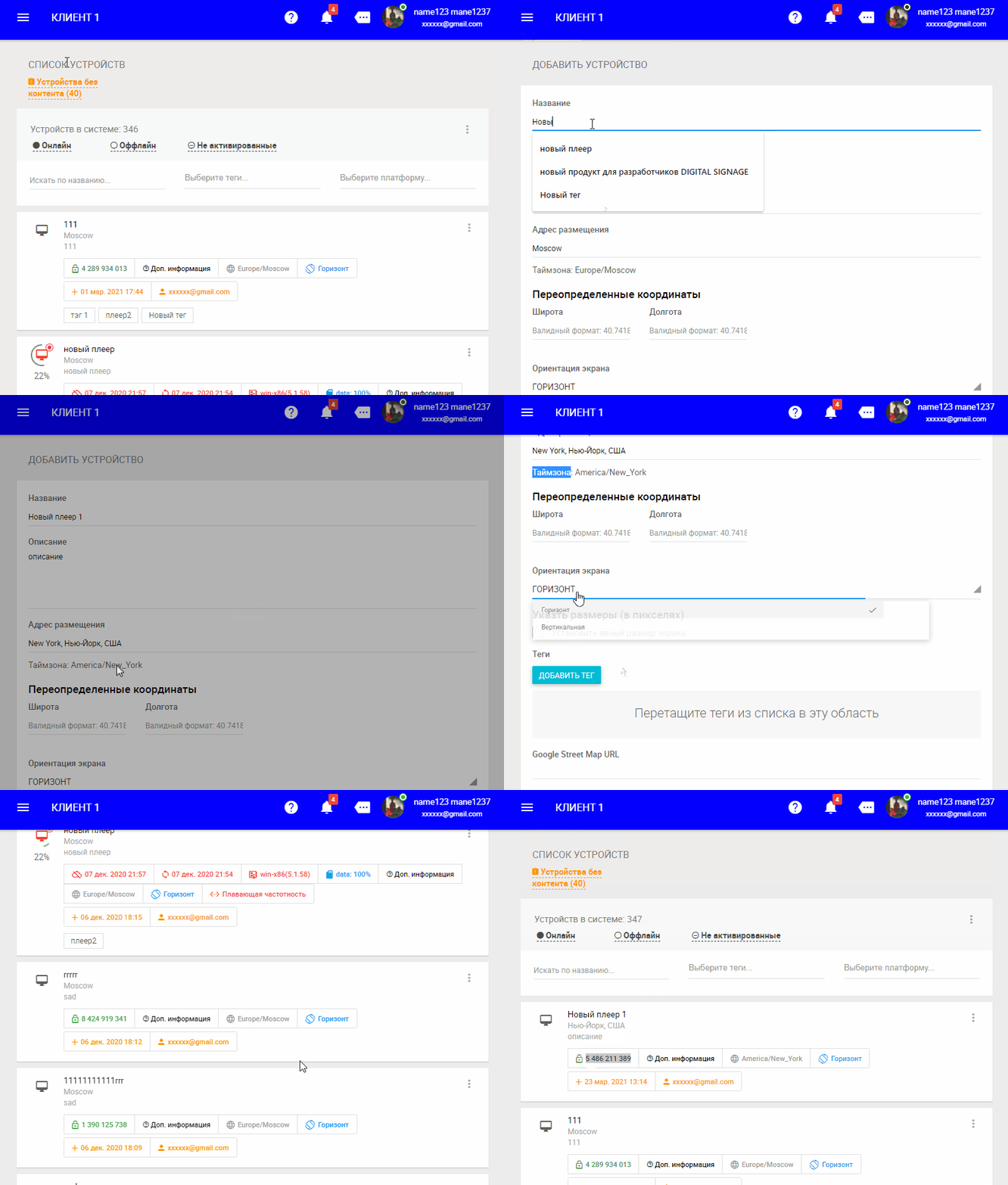
- Go to the devices section and click Add Device. Specify the name, address (the player's time zone will be automatically determined by address). For outdoor LED screens, it is recommended to specify the exact resolution in pixels.
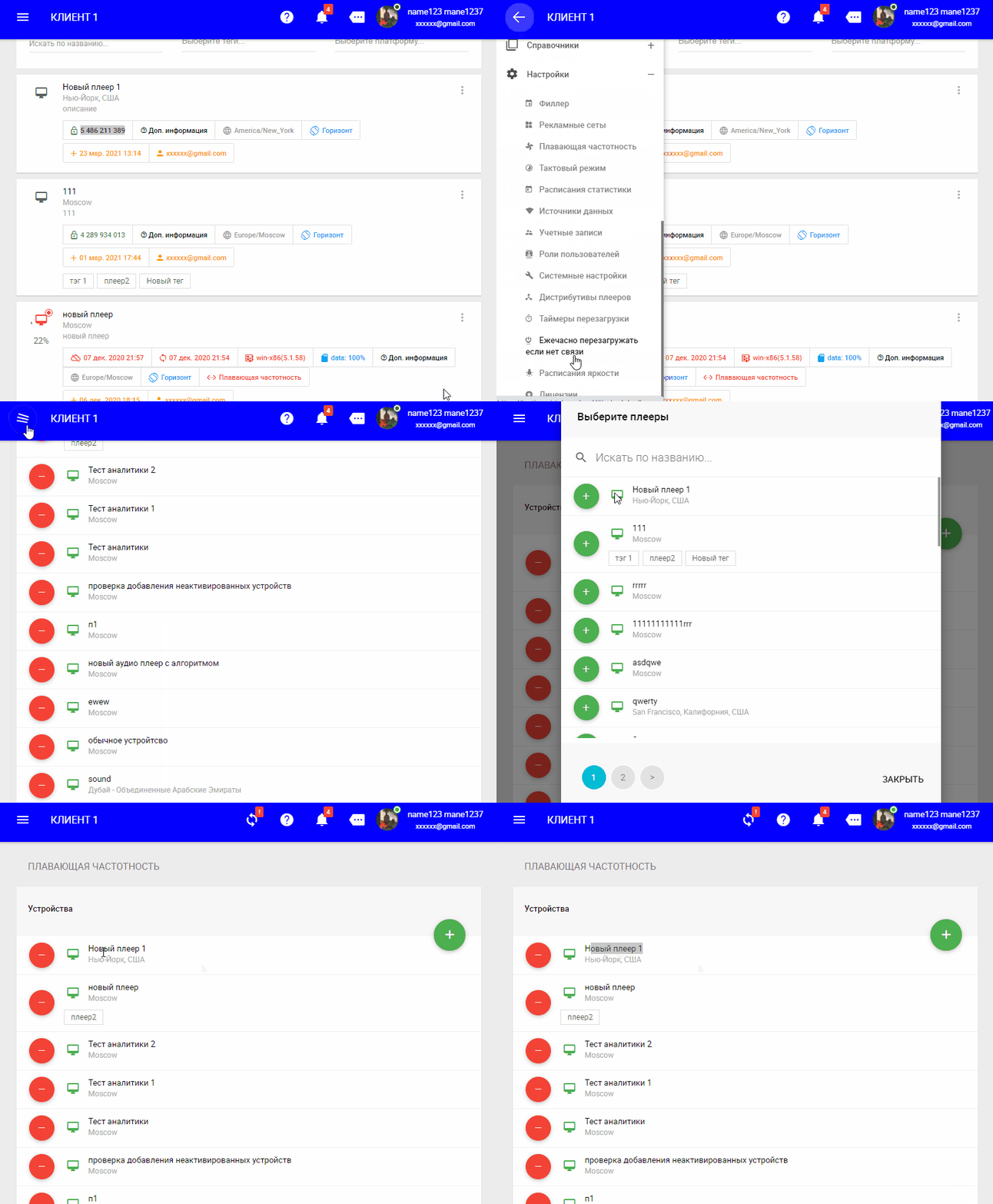
- ⚠️Bind the device to the floating frequency algorithm (or to an advertising set). 🔥 If you don’t do this, the player will not show anything, and the player will not be available in the list when creating an advertising campaign. To do this, go to Settings - Floating frequency - click the plus and add the device you created earlier.
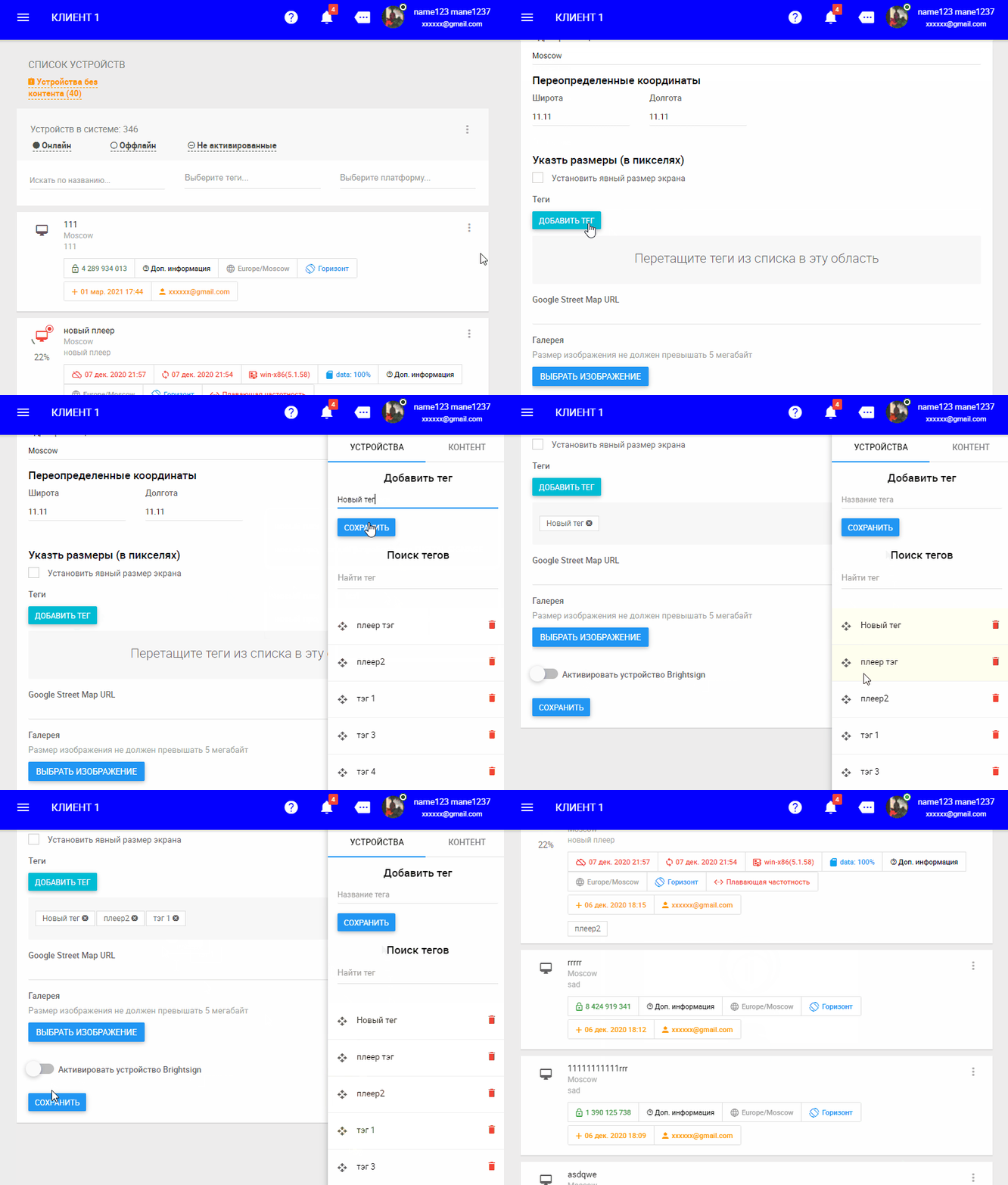
- Assign tags to the device (if necessary). Tags are needed for targeting fillers (see below). The player can have many tags.
- Add fillers (content that fills gaps between ads) in Settings->Fillers.
Fillers without tags will be broadcast on all devices.
If a filler has a tag, it will be broadcast 🛑only on devices with the same tag.
A filler can be a video, image, URL, HTML, VAST programmatic, etc.
Important! If a new filler is added, you need to click "update all devices."

If the steps are done correctly, the player will start playing fillers.
Add advertiser and their content
-
Go to the Advertisers section, click Add Advertiser. An advertiser folder will be created.
-
Enter the created folder, click "+", select the type of content to upload (for videos and images, choose "media content").
Create advertising campaign
Step 1
- Go to the Advertising Campaigns section, click Add Campaign
- Specify the campaign name
- Specify start and end dates
- Select the advertiser
- Select the campaign placement algorithm (we recommend "floating frequency")
- If "floating frequency" is selected, specify how many times per hour the campaign video will be broadcast. ⚠️ If the device was linked to the floating frequency algorithm (see adding devices above), it will not be available to add to this campaign
- If "advertising block" is selected, the campaign will be broadcast once per block cycle
Step 2
- Add the advertiser's video selected in the first step to the campaign. Attention! You cannot add horizontal content to a campaign with vertical orientation, and vice versa.
Step 3
- Add devices to the advertising campaign. Attention! Only devices that match the campaign orientation will be visible (devices with "vertical" property will not be visible if the campaign is horizontal, and vice versa). Also, if the campaign uses the "advertising block" algorithm, devices linked to the "floating frequency" algorithm will not be visible. At this step, the system will check for free airtime and display it on the planogram: green squares mean time is available, red means no time and those days will be skipped (campaign will not be broadcast) on these devices.
Step 4
- Review and publish the campaign
Step 5
After creating the campaign, devices do not sync automatically. For this, there is a sync icon in the right navigation menu. The icon appears if there are content updates for devices. To sync, click the icon. This is done to optimize server performance.

How to evenly space competitors’ videos
Example: Advertisers MEGAFON, MTS, BEELINE, TELE2.
According to the corporate policy of these advertisers, broadcasting next to competitors is not allowed.
Four campaigns were created for these advertisers.
Since the system is fully automated and the operator does not form the playlist, there is a chance some (or all) campaign videos will play consecutively. To prevent this, go to the advertiser cards, select each video, and add the same tag to all four (e.g., "communication"). After that, the algorithm will consider them competitors and will not allow placing them next to each other.
⛔⛔⛔ Important! This mechanic applies only to campaign videos and does not work for fillers! Filler tags serve for geographic targeting: fillers without tags are broadcast on all devices, fillers with tags are broadcast only on devices with the same tags.
How to see the order in which content will play on a device
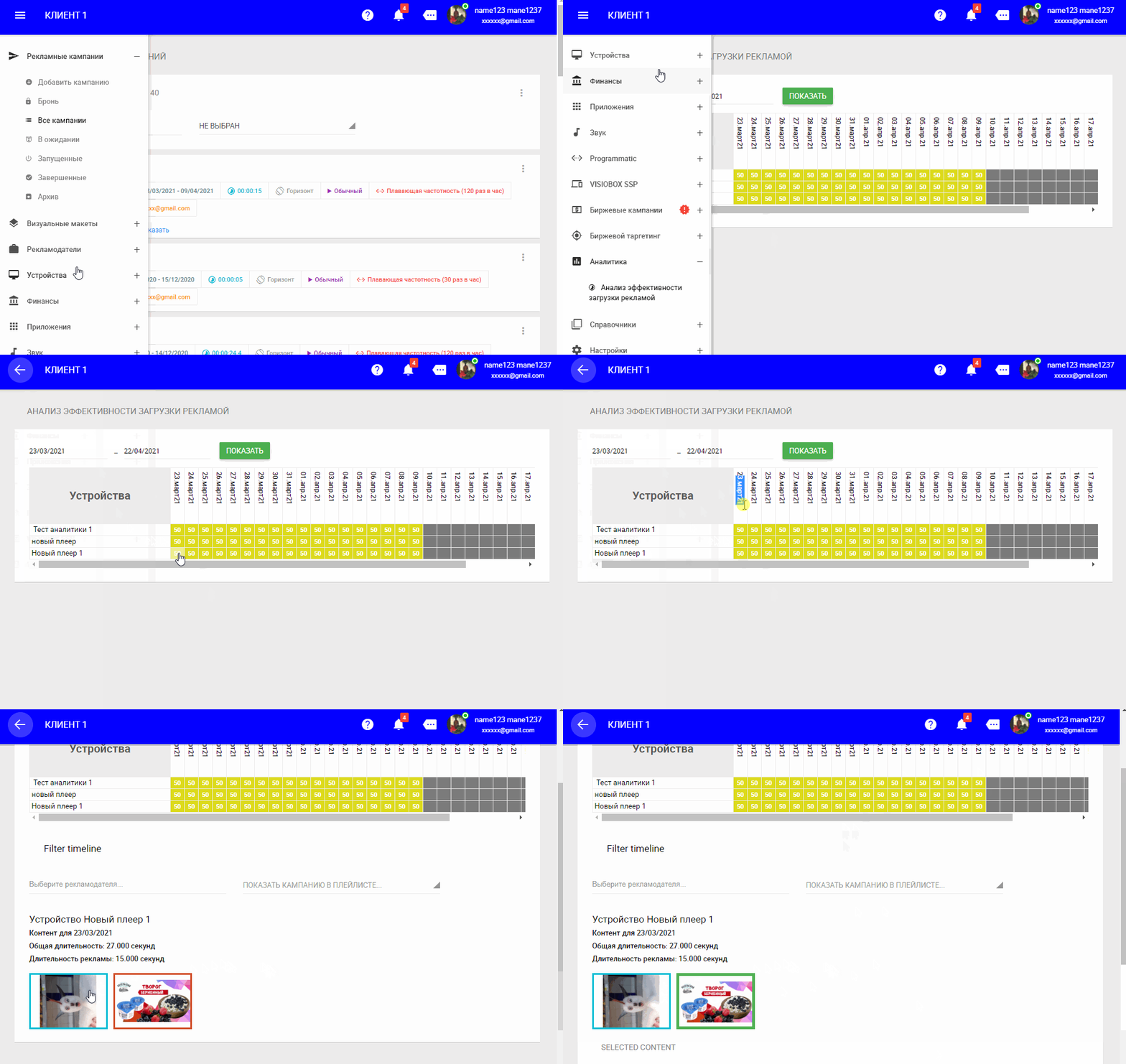
Since the system is fully automated and the operator does not create playlists (the operator simply tells the system how often to play a campaign according to the contract), the robot in the "floating frequency" algorithm solves complex math problems (combinatorics) and arranges videos (ads and fillers) according to the calculations. The algorithms work very precisely, but sometimes the operator needs to verify and evaluate the order of videos. To do this, go to the Analytics section and select a day for a specific device to see the playback order. In the generated timeline, videos play from top to bottom, left to right.
How to understand how much airtime is available on each screen
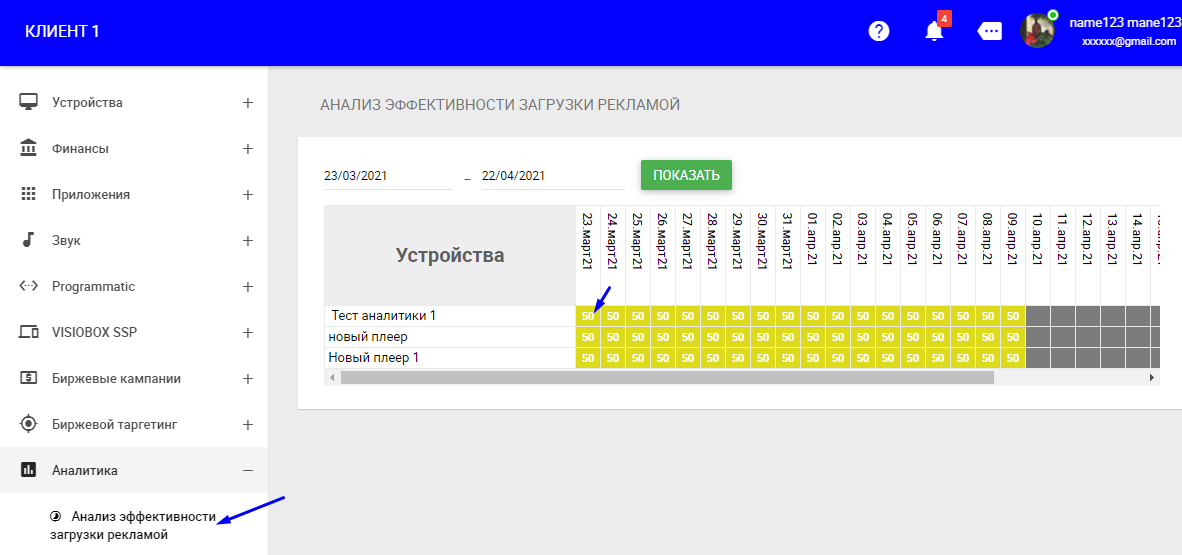
In the "Performance Analytics" section, a device-date grid will be built. The squares will show a percentage value. This is the percentage of advertising occupancy for that date on that device. Example: 90 means only 10% free space remains.