Oohdesk Linux Raspberry Pi Service Integration Documentation
We tested the player on a Raspberry Pi 5 with Ubuntu (ARM) — the player works perfectly, everything launches and displays without issues.
Tested device specifications:
- CPU: 4× ARM Cortex-A76, 2.4 GHz
- GPU: 800 MHz
- RAM: 8 GB
- Maximum resolution: 2160p (60 Hz)
If you plan to display high-resolution videos, pay attention to the GPU parameter. For standard tasks, this model handles everything without questions.
There was a case in Uzbekistan where the image froze on a huge screen (4K or 8K) until a 3060 video card was installed.
You can test on Raspberry Pi 4, but for real-world use, it is better to use Raspberry Pi 5 and above — after all, clients often have high layout resolutions.
Application Code
https://cms.oohdesk.com/dist/linux-arm64/oohdesk.sh
Launch
-
Place the archive on the Raspberry Pi (64-bit), extract it anywhere.
-
Open a terminal, in the folder with the extracted application, type:
sh visiobox.shFor example:
~/Desktop/oohdesk_1.0.5# sh visiobox.sh -
The program has been installed on the computer (at
~/.local/share/visiobox) -
Run the program: a) reboot the computer, the program will start automatically OR b) in the terminal, enter:
~/.local/share/visiobox/visiobox
-
Enter the device PIN code (from the CMS system)
-
Success. If everything is fine, layouts/fillers will start playing (or the logo will appear if there are no layouts/fillers yet)
-
Commands:
Ctrl+N– open settingsCtrl+D– deactivate PIN code
Configs, Logs
~/.config/oohdesk
Player Activation via Interface
A player is created in the CMS. After creation, the player receives a PIN code. The PIN code is one-time! After activation, the PIN code cannot be used a second time.
When the device is deactivated on the player, it is not deactivated in the CMS — it will simply light up red. To generate a new PIN code in the CMS, you need to deactivate the device (three dots → Deactivate). After that, a new PIN code will appear for generation.
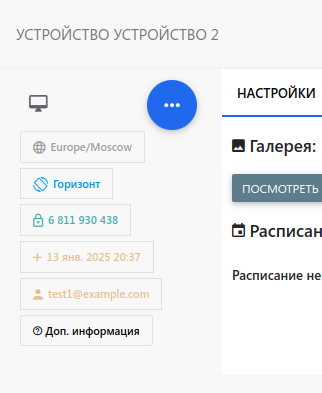
Example of how an inactive player looks in the CMS
Content Management
Content — any files from the CMS (including from SSP, if VAST is configured). From the CMS — images, videos, HTML. From VAST — any content allowed by VAST technology (but currently only mp4 is supported).
When content (if any) is downloaded from the CMS, it will start showing on the screen. Content (ads, fillers) downloads automatically when internet access appears. All management is carried out through the CMS.