How to Flash the Device
This instruction explains how to flash the device (but not how to install the Oohdesk CMS application). Attention! This firmware is only suitable for Oohdesk CMS devices and W95 Smart TV set-top boxes.
Current firmware for users
Download  firmware. We recommend using Download manager for downloading.
How to Flash
| USB Male-to-Male Cable | Flashing Utility | Video Instruction |
|---|---|---|
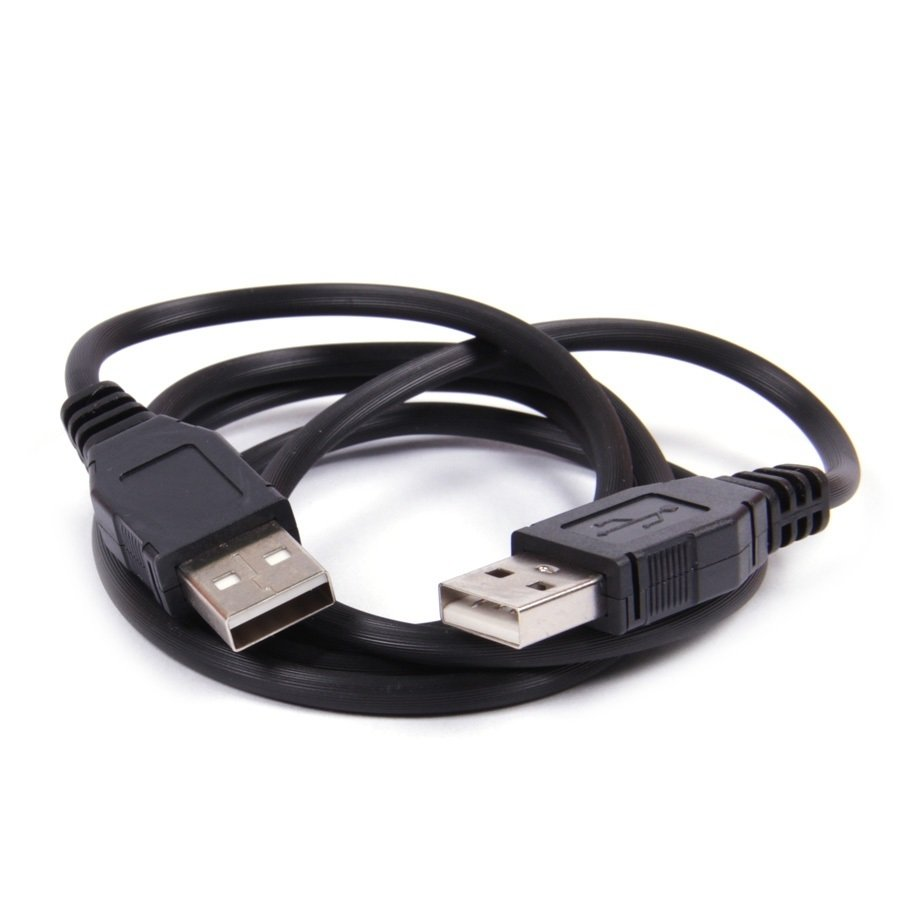 | Download Utility | How to Flash |
Important! The device must NOT be connected to the power supply!!!!
- Launch the utility (Important! Sometimes flashing fails on Windows 10 (If using Windows 10, be sure to disable driver signature enforcement). Windows 7 is recommended.)
- Import the image
- Press START in the utility window
- Insert the USB cable into the USB port located in the center of the device's end panel (this port is specifically for flashing). Do NOT connect the USB to the computer yet.
- Hold down the RESET button and do not release it
- Connect the USB cable to the computer
- The utility will show a flashing progress bar
- You can release the RESET button
- When the progress reaches 100% (the progress bar turns green), the device can be disconnected